Generate a proposal
Generate from a template, simulation, and financial model; freeze values.
Reviewed
What this is for
A generated document is a template filled from this project's sources and then frozen. The layout, the values, the branding and the figures behind every chart and table are captured at that moment. Nothing edits it afterwards. Regenerating makes another document beside it, so a customer holding a printed copy is holding what the system still says.
The screen is named Documents. It holds every template-driven file for the project, not only a sales proposal.
Steps
- Open Documents on the project.
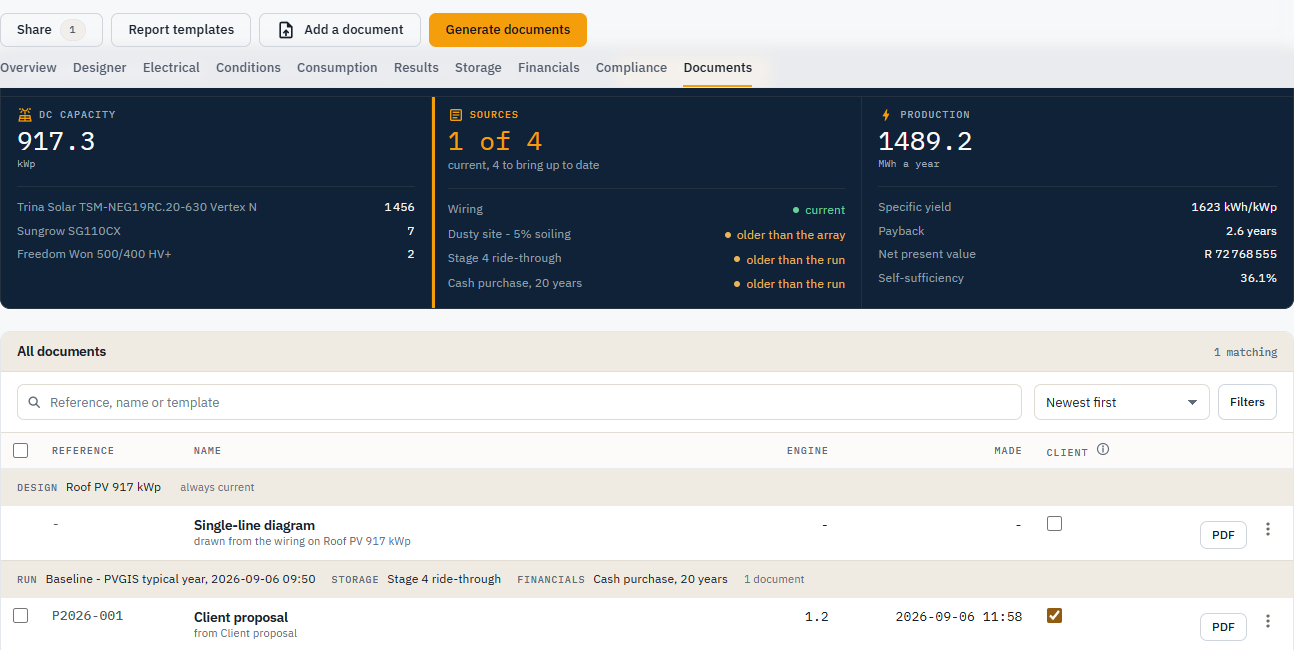
- What a document is built from names the design and its newest run, then counts its Sources: the wiring, the run, and each storage and financial model, each with one word -
current,older than the run,never run,never built. A project with no financial model shows never built rather than leaving the row out. While anything is outstanding, one button does the work and is named for what it starts (Generate the wiring, Simulate, then compute, Bring up to date); when nothing is, it reads Open the results. - Generate documents. Pick one or more templates. Each template generates its own document from the same sources.
- Attach a Simulation, a Financial model and a Storage model when the templates need them. The three must describe one design, or generate refuses. The dialog says what would resolve and what would print as dashes before you generate. A template of production figures with no run, or financial figures with no model, is a page of dashes.
- Generate. Tokens are resolved, and the values, charts and tables are frozen with the document.
- Open a generated document to read it. To change the numbers, fix the source and generate again.
- Add a document files something the product did not author - a survey, a warranty - against this project. The Client column on the list decides what a share link shows. A generated document starts ticked; an added file starts unticked.
- The single-line diagram is a third kind of document, switched on the design. It starts unticked for the client. Tick it when the drawing is ready to show.
Empty is "No documents yet", not a broken table.
Tips and common mistakes
- Generation is one-way. There is no "edit this PDF".
- Recomputing, editing or deleting the financial model, the storage model or the design afterwards changes nothing on a document already generated. To send the new figures, generate again.
- Several templates share one simulation, one financial model and one storage model. The thing that varies is the page design.
- Tick the rows you want, then Download selected as one zip or Email to client. The covering note uses the team's email templates. Email is offered only where this deployment can send mail.