Projects list and live readouts
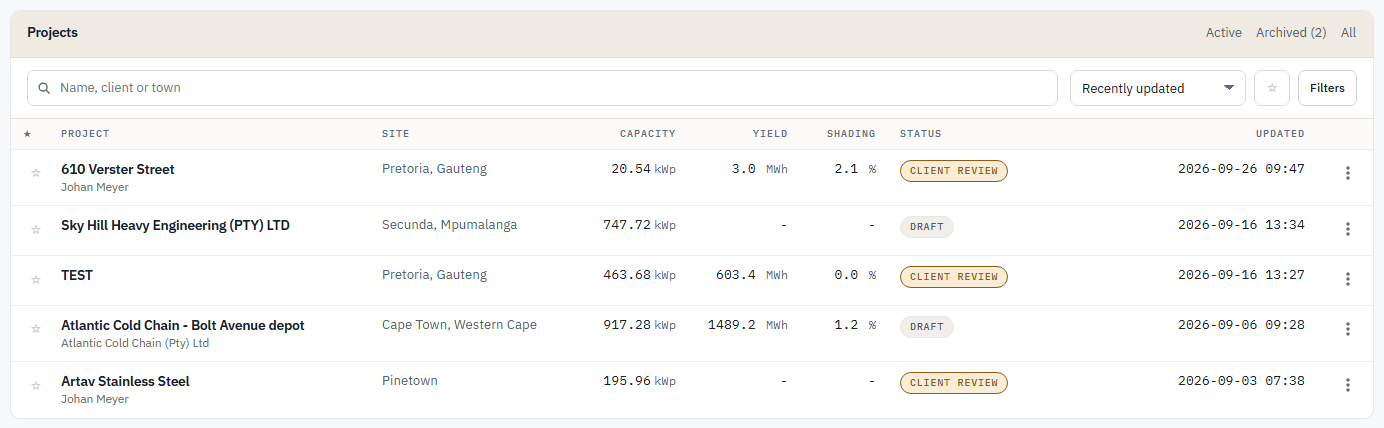
The projects list and approximate yield readouts on the workspace.
Reviewed
What this is for
The team's portfolio at a glance, and the site strip on a project you have opened. Capacity that has been laid out is a measurement. Yield and shading that have not been simulated are not - those cells are a dash, not 0.
Steps
The list
- Projects is the team's sites. New project is the way in. Click a name to open Overview. A Viewer sees the list without New project or the row's Duplicate, Archive, Restore and Delete, and the star shows what the team marked without being pressable.
- Across the portfolio sums active work: capacity laid out, modelled yield once simulations have run, average shading across simulated designs, and how many sites sit at a lifecycle status (the label is this market's name for that status).
- Modelled yield of
0.0 MWhwith the caption "once simulations have run" is "nothing has been run yet". Average shading of-is "nothing has been measured". They are different statements. Capacity of1.1 MWpis a nameplate that exists. - Narrow the table with Active, Archived and All. Archive on a row files the site without changing its lifecycle status. Restore brings it back; it does not un-win a job. Lost is a lifecycle status you set on Overview; Archived is a filing flag. They are two facts. Yield and shading in the table follow the same dash rule as the strip.
- Search takes a name, client or town. Filters narrows by status, whether a site has been simulated, capacity, and grid applications awaiting approval; each filter in force shows as a chip you can clear. Star the sites you are working on, and the star beside the sort shows only those.
- Shared with you is work another team shared with you by name, to view or to edit as they chose. It is one project, not a seat: editing it does not include sharing it on, moving its status, duplicating, archiving or deleting it.
- The getting-started strip is the same four steps as Your first project. It disappears when those are done, or when you dismiss it for good.
Overview
Open a project. The site strip is the nameplate of the largest design (a dash until the project has a design), equator-facing azimuth (a dash until there is a pin), annual load (a dash until there is a consumption profile), and supply capacity (a dash until the phase count, rated amperes and supply voltage are all stated - the caption names the one still missing). Open designer is the canvas. The strip across the top is the rest of the job.
Tips and common mistakes
- A missing KPI looks like a broken page. A zero on the portfolio count of active projects is an honest empty team. A dash on shading is "not measured". Do not quote the dash as no shade.
- Archived and lost sites are named in the strip when they exist, so the table and the totals do not disagree.
- Status on a row is the project's lifecycle, not a simulation result. Change it on Overview.