Your first project
A short path from a new site to a first simulation.
Reviewed
What this is for
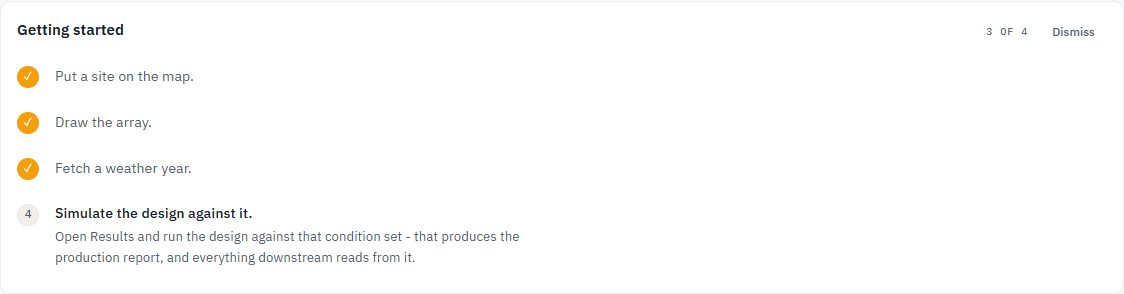
The shortest path that produces a production report: pin a site, draw the array, fetch a weather year, and run that pairing. Everything else - wiring, bills, batteries, paperwork - reads from those four.
The Projects list carries a getting-started strip for the same four steps. It names the next one and links to it.
Steps
1. Put a site on the map
- From Projects, open New project.
- Give the project a name. A client name is optional. Notes stay on the project and are not printed on a proposal or sent with a grid application.
- Find the site: search an address, paste a coordinate pair, or drop the pin by hand. A project can be created without a pin, but nothing can be designed until one is recorded.
- Grid connection is optional. Skip it if you do not have the bill in front of you. It is used later for grid-code checks and application paperwork.
- Create and draw the array creates the project and opens the designer. Nothing on this page is asked again there. If the team has already used this month's project allowance, or has no plan because its trial or subscription has ended, create is refused and the page says so.
2. Draw the array
- In the designer, choose Draw field segment and click each corner of the array on the imagery.
- ArrayTrace lays the modules out on the sloped plane, respecting setbacks, row spacing and anything in the way. Capacity is
0 kWpuntil modules exist. - The rest of the designer - keepouts, wiring, shade, overlays - can wait. A first run only needs a nameplate.
3. Fetch a weather year
- Open Conditions. A project starts with one condition set.
- Fetch for this site pulls an hourly year for the site's grid cell. You can upload a TMY3 or EnergyPlus file instead.
- Apply stores the set. A condition set with no weather source cannot be simulated. The Results matrix will say so.
A condition set is what the world does to the array: weather, soiling, losses. It carries no geometry. That split is the point - one design can be run against several weather assumptions.
4. Simulate the pairing
- Open Results. Designs run down the side, condition sets across the top, one cell per pairing.
- A cell needs, at the least, modules on the design and weather on the condition set. A pairing that cannot run reads Not ready, and Not ready to simulate under the matrix says why.
- Run the cell, or Simulate what needs it. The run happens in the background, so you can leave the page.
- When it finishes, the cell is the production report: specific yield, performance ratio, annual energy. Open it for the loss waterfall and the rest of the numbers.
Tips and common mistakes
- A design carries no weather and a condition set carries no geometry. That split is Design vs condition set.
- Fetching weather is not enough until you Apply. The set on screen is a draft until then.
- A project with no pin still opens the designer, but the site has no coordinate to fetch weather for and nothing to aim the imagery at. Put the pin on Overview first.
- The getting-started ticks are a high-water mark. Deleting the only project does not unwind them, but the remaining steps still need a project to open - use New project if the list is empty.
- Dismiss on the strip hides it for good.
- Or make me a sample sits beside New project on the strip while the team has nothing to open. It builds a Sample site with a roof drawn at the map centre - not on a real building - and a condition set with no weather yet, then opens the designer. It counts against the month's project allowance like any other project.