Designer overview
The canvas, the rail, and what a design is.
Reviewed
What this is for
A design is what you would build: outlines, racking, modules and wiring. A project can hold several so you can compare them. Weather, soiling and the rest of the year live under Conditions, not here.
The canvas is the drawing. The rail on the left is the sections. Pan, drag and snap stay on the map, and a gesture there saves when you let go. What you type in the panel saves only on Update field segment (or Update keepout, Update overlay).
Steps
- Open Designer. The rail, in order: Design, Array, Obstructions, Electrical, Shading, Site, Keyboard. Pressing the section you are already in steps back to its list, then closes the panel; press it again to bring it back. A count on the rail is what is in that section. Zero is not drawn.
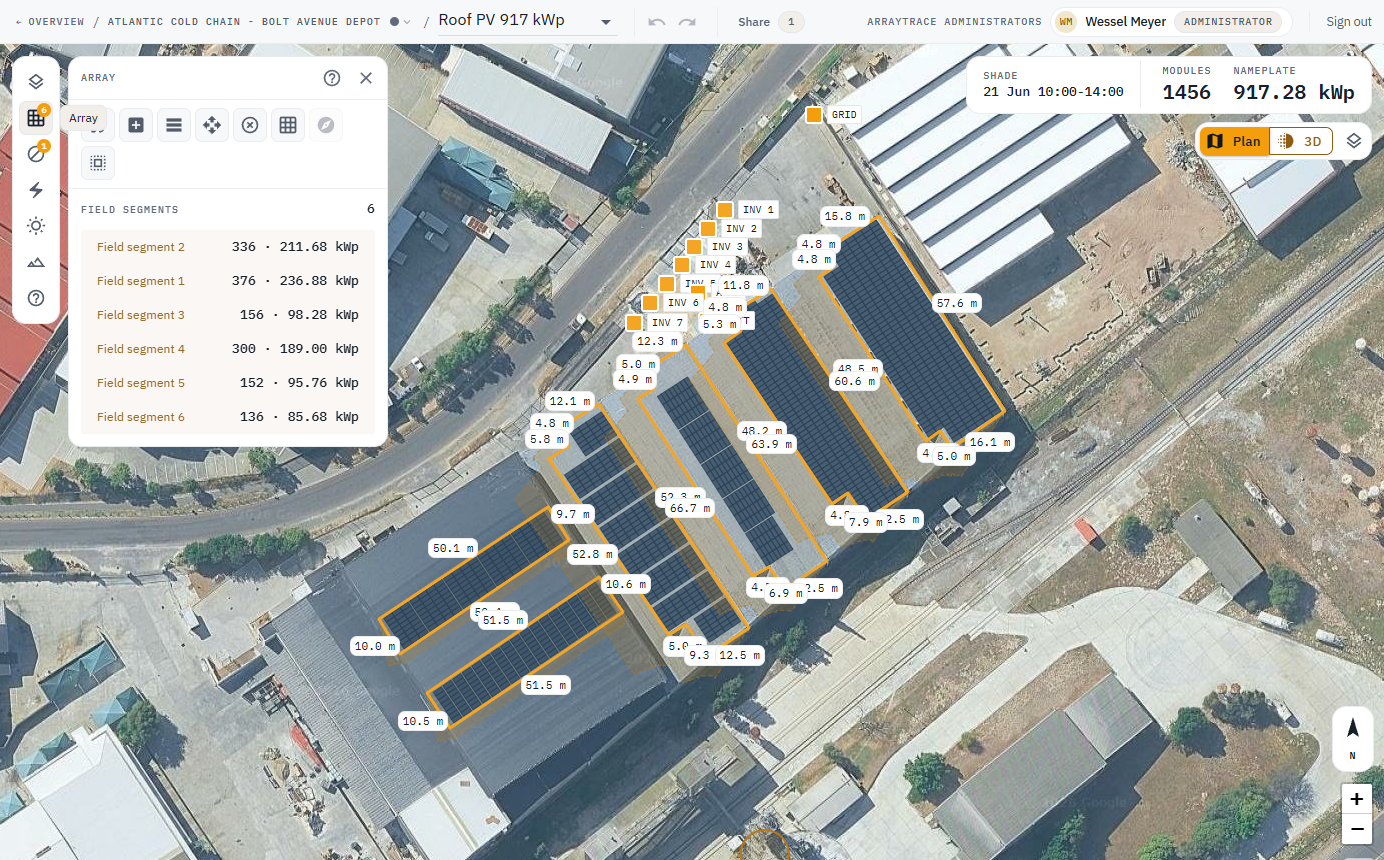
- A new design opens on Array. The HUD top-right is module count and nameplate while you draw. Those are a live estimate, not a simulation. Energy comes from a run on Results.
- Plan / 3D is on the canvas HUD, not on the rail. Plan is where you edit; 3D is where you check row gaps and clearance.
- Design on the rail is the design as an object: New design, rename, duplicate, lock, and delete (only when there is more than one). Duplicate copies the design whole, including every hand edit. With more than one design it also copies keepouts or field segments across from another.
- Undo is Ctrl+Z, or the arrow on the top bar, which names the step it takes back. Ctrl+Z ignores a keystroke in a text box. Wiring, a placed inverter and a site-plan file sit outside it. Share sits on the same bar, as on every other section of the project.
- A warning mark with a count beside the panel heading means a component on this design states less than a full datasheet. Open it before trusting a number: it says which component, and whether a figure such as a module's size was supplied rather than read. Nothing is drawn when the components are complete.
Tips and common mistakes
- Looking for the weather file here is the first wrong turn. Conditions is a different section of the project.
- A dense array reads as a solid block. Trust the stored module count, not the look of the fill.
- Closing the panel does not deselect. Vertex handles stay on the map.